Fix Instagram Carousel Woes: Add Multiple Photos to Your Posts Like a Pro


Unable to add multiple photos to your Instagram carousel? You're not alone! Many users have faced this issue, and it can be quite frustrating. But, there are ways to resolve this problem.
If you're experiencing this issue, don't worry. There are a few quick and easy steps you can take to fix it. Before we explore the solutions, let's understand the possible causes behind this:
Insufficient Storage: Sometimes, when your phone or device's storage space is running low, it can interfere with Instagram's ability to process and upload multiple photos for a carousel post.
Outdated Instagram App: If you're using an outdated version of the Instagram app, it may have bugs or glitches that can cause this error.
Slow or Unstable Internet Connection: A slow or unstable internet connection can also lead to issues in uploading multiple photos for a carousel post. The upload process might get interrupted, resulting in an incomplete or failed upload.
Now that we know the potential reasons, let's delve into the solutions:
Clear Cache and Data: Clearing the Instagram app's cache and data can often resolve the issue. This frees up space and removes any temporary files that might be causing the problem.
Update Instagram App: Make sure you're using the latest version of the Instagram app. Instagram regularly releases updates that include bug fixes and improvements.
Ensure Stable Internet Connection: When creating a carousel post, ensure you have a strong and stable internet connection. A poor connection can be rectified by moving closer to your Wi-Fi router or switching to a different network.
Limit the Number of Photos: Instagram allows you to add up to ten photos or videos to a carousel post. If you're trying to add more than ten, it may not work. Try reducing the number of photos in your carousel and see if that resolves the issue.
Uninstall and Reinstall Instagram: If the problem persists, you might need to uninstall the Instagram app and then reinstall it. This will remove all the app's data and settings, so make sure you back up any important information beforehand.
Remember, these solutions can help resolve the issue most of the time. However, if the problem persists despite trying the above steps, you should report the issue to Instagram's support team.
Fix Missing Instagram Carousel: Troubleshooting and Solutions
Instagram carousel, a captivating feature allowing users to share multiple photos or videos in a single post, has become an integral part of the platform's dynamic storytelling. However, users may occasionally encounter the frustrating issue of missing carousel functionality, preventing them from adding multiple media to their posts. This guide delves into the potential causes and provides step-by-step solutions to resolve the problem efficiently.
1. Check for Instagram Updates:
- Ensure you're using the latest version of the Instagram app.
- Updates often include bug fixes and improvements that might resolve the issue.

2. Restart the Instagram App:
- Sometimes, restarting the app can rectify glitches.
- Close the app completely and relaunch it.

3. Check Your Internet Connection:
- A stable internet connection is crucial for smooth Instagram functionality.
- Ensure you have sufficient network coverage or try connecting to Wi-Fi.
4. Clear Instagram Cache (Android Users):
- Cache buildup can lead to app malfunctions.
- Go to Settings > Apps > Instagram > Storage > Clear Cache.
)
5. Reinstall the Instagram App:
- If the problem persists, reinstalling the app can be a solution.
- Uninstall Instagram and download it again from the app store.
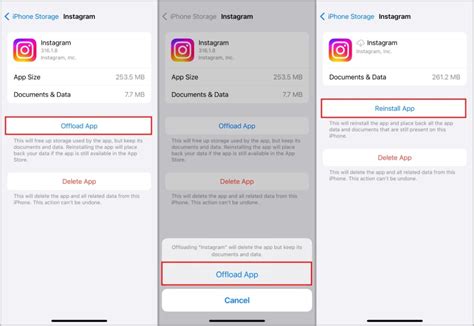
6. Update Your Device's Operating System:
- An outdated operating system can cause compatibility issues with apps.
- Check for available updates and install them if necessary.
7. Report the Issue to Instagram:
- If none of these solutions resolve the problem, report the issue to Instagram.
- Go to Settings > Help > Report a Problem.

Conclusion:
The missing Instagram carousel can be a frustrating issue, hindering creative expression and storytelling on the platform. By following the troubleshooting steps outlined in this guide, users can attempt to resolve the problem самостоятельно. If the issue persists, reporting it to Instagram directly can help them address the problem and provide a permanent solution.
Frequently Asked Questions:
1. Why can't I add multiple photos to my Instagram post?
- Check for app updates, restart the app, ensure a stable internet connection, clear cache (Android users), reinstall the app, update your device's OS, or report the issue to Instagram.
2. What should I do if I can only add one photo to my Instagram post?
- Try the solutions mentioned above, including checking for updates, restarting the app, and ensuring a stable internet connection. If the issue persists, explore other options like reporting the problem to Instagram.
3. Is there a limit to the number of photos I can add to an Instagram carousel?
- Yes, the maximum number of photos or videos allowed in an Instagram carousel is 10.
4. Can I add videos and photos together in an Instagram carousel?
- Yes, you can mix photos and videos in a single carousel post, allowing for a dynamic and engaging storytelling experience.
5. How can I troubleshoot Instagram carousel issues on my Android device?
- Clear the Instagram cache by going to Settings > Apps > Instagram > Storage > Clear Cache. Additionally, ensure you have a stable internet connection and the latest version of the Instagram app installed.
